
What is New in the Oxygen Git Client Add-on 6.1
Version 6.1 of the Oxygen Git Client add-on focuses mainly on repositories that use more than one remote server. Add to that multiple selection in the History view, a handful of everyday improvements, and various bug fixes. Here are the highlights.
Working with multiple remotes. This version makes working with multiple remotes easier: pushes follow each branch's tracking configuration, the Git Branch Manager lets you manage remotes, and each remote uses credentials for its own host.
-
Push goes where the branch points. Pushing a branch now follows its tracking configuration instead of assuming
origin. When you push a new branch that has no upstream yet and the repository has several remotes, you choose the remote to push to and decide whether it becomes the branch's upstream. -
Manage remotes from the Git Branch Manager. Right-click in the Git Branch Manager to add a remote, edit one's name and URL, or delete one. Hover a remote to see its URL. Every configured remote is listed, even if you have not fetched from it yet. This is especially useful when you need to correct its URL.
Figure 1. Add a remote from the contextual menu of the Remote node 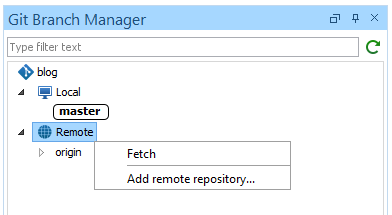
Figure 2. Edit or delete a remote from its contextual menu 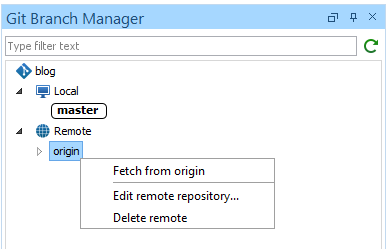
-
The right credentials for the right server. Each remote authenticates against its own host, so a repository that uses multiple servers no longer sends one server's credentials to another. An authentication error identifies the server that rejected the credentials.
Fetching only part of a repository. Some remotes are configured to fetch only a few of their branches, which keeps large repositories manageable but can be confusing when a branch you expect simply is not there. The Git Client now makes this visible and lets you decide what to do about it.
-
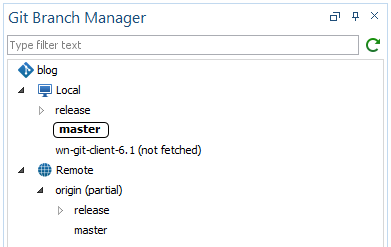
Partial remotes are marked. A remote that fetches only some of its branches is marked (partial) in the Git Branch Manager, and its tooltip explains what is being fetched. When you want everything, the new Fetch all branches action updates the configuration to fetch all branches.
-
Missing ahead/behind counts are now explained. A local branch whose upstream is not covered by the fetch configuration can never report how far ahead or behind it is. Such branches are now marked as well, and the Fetch branches used locally action brings in just the upstream branches your local branches track, without fetching everything else.
A more productive Git History view. Two additions make the files affected by a commit easier to work with.
-
Act on several files at once. The affected-files tables now let you select multiple files, so you can open, stage, unstage, discard, or copy their paths in one action.
-
Copy a path the way Git sees it. The new Copy relative path action copies a file's path relative to the repository root, ready to paste into a
.gitignorefile, a command line, or a review comment. For a renamed file, Copy previous path gives you the name it had before the rename.
And a list of everyday improvements:
-
Every comparison in the Git client labels its two sides—Mine and Theirs in a conflict, Working copy and Staged when reviewing changes, Newer and Older in the History—and names the file in the window title.
- The Track remote branch dialog box now lets you remove a branch's upstream. A branch that tracks a remote branch deleted from the server is shown as (not available) and kept, instead of looking as if the branch tracked nothing at all.
-
A fast-forward merge into a clean working copy no longer requires confirmation, and every completed merge reports its result in the status bar.
-
The commit message proposed after you resolve merge conflicts is the one Git recorded when the merge started, so it names the same branch, tag, or URL that
git
            commit
would on the command line.
The Git Client add-on works with Oxygen XML Editor, Author, Developer, and Oxygen JSON Editor. To get 6.1, update the add-on from Help > Install new add-ons, or drag the Install button from the add-on webpage into the editor. Give it a try and let us know what you think!