
Propose Changes with Oxygen Content Fusion
It starts with a small link in the corner of a published page:
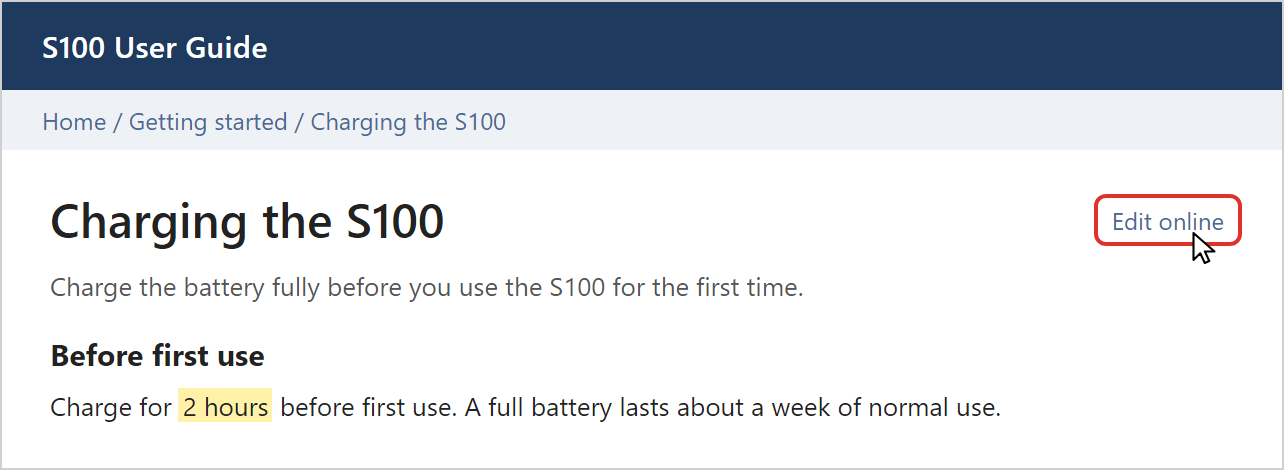
Technical writers are not the only people who know the product. Field engineers see how customers install it, support staff answer the same questions every week, and developers know what changed in the last release. When they find a mistake in the docs, they usually report it in a chat message or a ticket, and the fix waits until a writer has time for it.
We wanted these experts to fix the docs themselves, without write access to the content. So we added a new user role to Oxygen Content Fusion: Contributor. A Contributor can edit a project in a private workspace and send the changes to the writers for review. Only a writer can put a change into the project.
How an expert proposes a change
Say Dana, a field engineer, reads the S100 user guide and sees that it gets the charging time wrong. Dana clicks Edit Online, and the topic opens in Dana's personal workspace in Content Fusion. The workspace is a private copy of the project, so nobody else sees the edits yet.
Dana fixes the value. The badge on Submit for Approval counts the changed files.
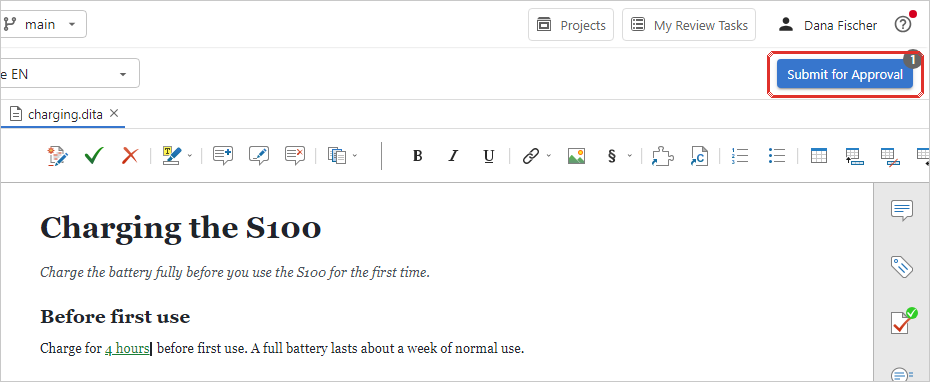
An expert can also rewrite a section or add a new topic. When the change is ready, Dana clicks Submit for Approval, gives the change a title, and says why it is needed. That is all Dana has to do. Dana needs no Git account and never has to think about branches or pull requests.
How a writer takes the change in
Content Fusion turns the change into a review task without an owner, and emails the project maintainers:
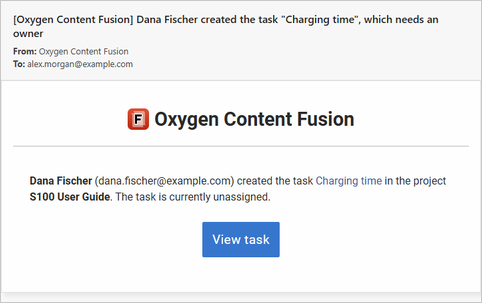
Alex, one of the writers, opens the task and clicks Assign Me as Owner. Content Fusion emails Dana to say that Alex took it. The task is also where the two of them talk: they can discuss the change in comments, and Dana can keep editing the files in the task until they agree.
When the change is ready, Alex brings it into Alex's own workspace with Finish integration > Integrate in workspace.
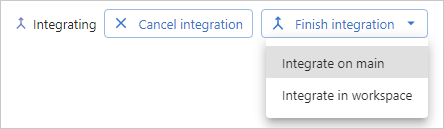
This step gives Alex a chance to check the change against the rest of the project. A one-line fix in one topic can still break a link or a key reference in another, so Alex validates the publication in the Problems view.
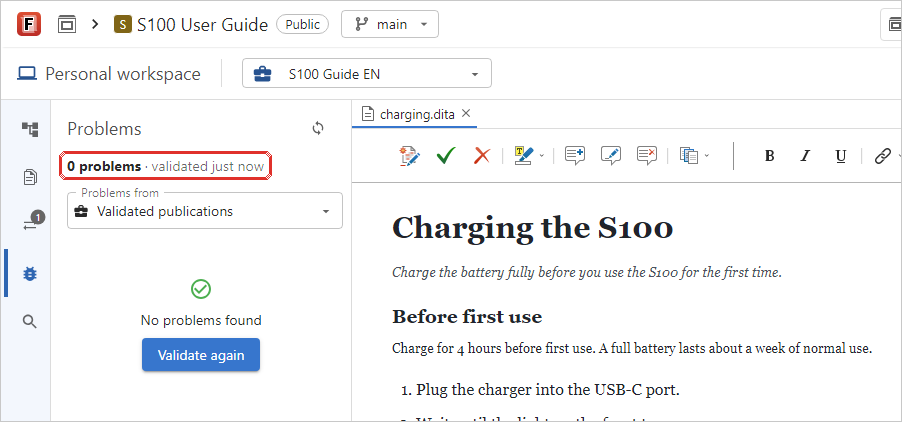
No problems, so Alex clicks Commit changes. The fix goes out with the next build of the docs.
How to set it up
You need three changes before the first contributions arrive:
- In your organization's member list, give the expert the
Contributor user role. Contributors use their own
license seats, next to the Author and SME seats.
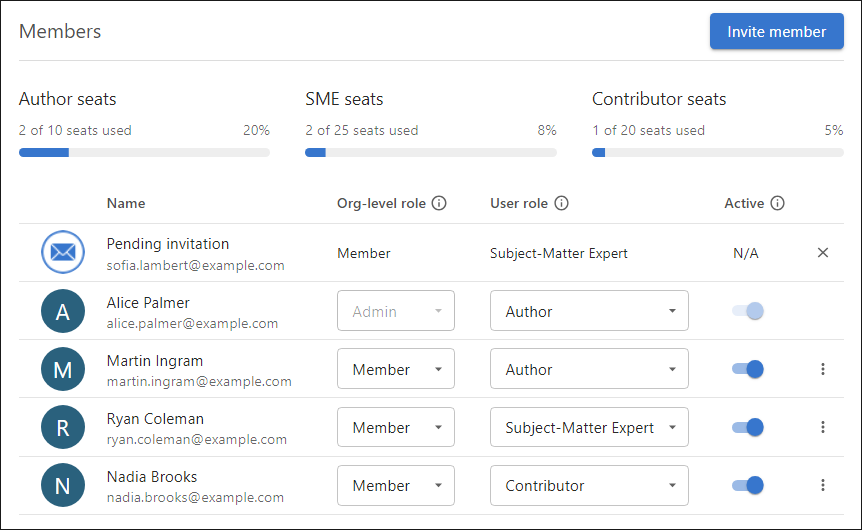
- Add the expert to the project as a Collaborator, the only project role a Contributor can have. Contributors see only the projects you add them to, public projects included.
- In the WebHelp deliverable, select Add 'Edit Online'
links and publish it again. Every page of the output now has a
link that opens it for editing.

The two-minute version
We also made a short explainer about expert contributions: